
当 Ubuntu 服务器的时区设置不正确时,可能会导致日志记录、计划任务 (cron jobs) 以及其他时间相关的操作出现偏差。以下是修复 Ubuntu 服务器时区的详细方法:
1. 检查当前时区设置
首先,您需要确认当前的时区设置是否正确:
timedatectl该命令会显示类似以下的信息:
Local time: Mon 2023-10-02 12:34:56 UTC
Universal time: Mon 2023-10-02 12:34:56 UTC
RTC time: Mon 2023-10-02 12:34:56
Time zone: Etc/UTC (UTC, +0000)
Network time on: yes
NTP synchronized: yes
RTC in local TZ: no
重点关注 "Time zone" 字段,它显示了当前的时区设置。
2. 列出可用时区
在更改时区前,您需要知道目标时区的名称:
timedatectl list-timezones如果您知道大概的区域,可以使用 grep 过滤,例如查找亚洲时区:
timedatectl list-timezones | grep Asia常见的中国时区是 "Asia/Shanghai"。
3. 更改时区(推荐方法)
方法1:使用timedatectl命令(适用于systemd系统)
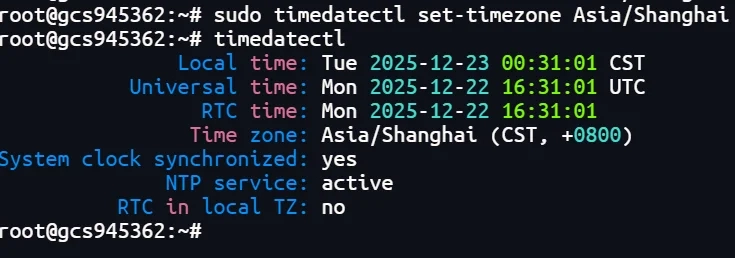
sudo timedatectl set-timezone Asia/Shanghai执行后时区会立即更改,无需重启。
方法2:手动创建符号链接(适用于非systemd系统)
如果您的系统没有使用 systemd,或者 timedatectl 不可用,可以手动更改:
sudo rm /etc/localtime
sudo ln -s /usr/share/zoneinfo/Asia/Shanghai /etc/localtime
sudo echo "Asia/Shanghai" | sudo tee /etc/timezone
这种方法也适用于 Docker 容器等环境。
方法3:使用tzdata交互式配置
sudo dpkg-reconfigure tzdata然后按照提示选择大洲和城市来设置时区。
4. 验证时区更改
更改后,使用以下命令验证:
timedatectl或者:
date输出应显示新的时区信息。
5. 同步网络时间(可选)
为确保时间准确,建议启用 NTP 时间同步:
sudo timedatectl set-ntp true如果需要立即同步:
sudo systemctl restart systemd-timesyncd或者使用 ntpdate 工具(需先安装):
sudo apt install ntpdate -y
sudo ntpdate cn.pool.ntp.org
中国的公共 NTP 服务器是 cn.pool.ntp.org。
6. 同步硬件时钟(可选)
将系统时间写入硬件时钟:
sudo hwclock --systohc注意事项
在生产服务器上修改时间可能影响日志、数据库、计划任务等,建议在维护窗口操作。
如果服务器运行 Kubernetes/Docker,还需同步容器时间。
某些旧版 Ubuntu 可能使用 tzconfig 命令(现已被 dpkg-reconfigure tzdata 替代)。